



Ok, everyone seems to be getting on the Internet these days and I thought that it might be a good idea to help those out who have no idea about how to get a web page on the WWW.
The first thing about a web page is that it is really easy and doesn't take much effort to learn the basics of the programming language that most web pages are built using. HTML code or Hyper Text Mark-up Language, is a basic code that anyone can get to grips with and you don't need any fancy editors like Front Page, Hot Dog or Hot Metal. All you need is a computer (doh!) and a ASCII editor that come with your operating system like notepad in Win 95/98/3.1/3.11 or Mac OS, or even MSDOS (Text Editor) and a browser (Netscape Navigator or Internet Explorer or Opera) to check what your pages look like when they're on the Net.
So that's the starting point. I won't bore you with all the jargon and shit that goes with HTML but I'm going to show you the basics in a step by step guide on programming HTML code. So let's get on with it and do our first page:
The Basics
First of all open up your text editor:
In Win 95/98
Click the "Start" Button and select run and type "notepad.exe" alternatively select "Programs" then "Accessories" and then "Notepad" to launch the notepad program.
In MSDOS
At the command prompt (C:\) type "EDIT" and Text Editor will launch.
Your First Page
Now your ready to program. So to get our first page we need to type some commands on that blank page.
In HTML the commands are called HTML TAGS and they are encased in two brackets like this <HTML> this tells the browser that HTML code is to be processed and the command HTML is to be opened.
This tag is the first tag that has to go at the top of your web page. Likewise you have to tell the browser when you're not using a particular tag anymore and in effect are closing the command this is done by typing a forward slash (/) inside the bracket before the command like this </HTML> and this tag is the last tag on your web page.
So we can construct the first part of our page by typing the following:
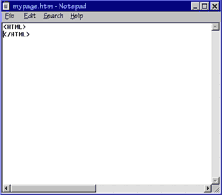 <HTML>
</HTML>
Then Save this as mypage.htm or mypage.html in My Documents or a directory of your choice.
Then open it in your browser Netscape (type in the Location box: file:///C|/MY DOCUMENTS/MYPAGE.HTM alternatively use the "open" command from the File menu) in Internet Explorer (type in the Location Box: file:\\C:\MY DOCUMENTS\MYPAGE.HTM) You'll see a blank page - that's right we've yet to put something on it.
So now we need to put some more tags between the two HTML tags. The first is <HEAD> which is the header or the first part of the page that is downloaded this section usually contains information about the page like the <TITLE> which is the name that appears on the title bar at the top of the browser window. So we'll call this page "My Page" and then we'll close the tag </TITLE>. The other types of code that go in the header section are JavaScript (another web page language) commands and some CSS (Cascading Style Sheets) commands. Then we need to close the header section and we do this with </HEAD>. So we have now given the page a title but it still hasn't got any content. So let's put some in.
The content of the page is contained within a tag called <BODY> so just to get us going just type your name after this tag and then close the tag </BODY> - don't forget to save your page after adding new code.
So this is the code all together:
<HTML>
<HEAD>
<TITLE>My Page</TITLE>
</HEAD>
<BODY>
Your Name
</BODY>
</HTML>
Changing the Typeface and adding some color
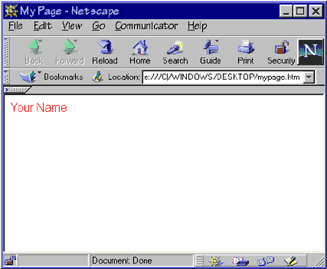 Right now we're getting somewhere, using the same code let's change the look of the text. We do this using a <FONT> tag, now we come to a little bit more interesting stuff because some tags like <FONT> have additional properties to them or the parenthesis as its called, these allow you to change the size, colour, and specify a typeface (the default is usually Times).
So let's add a <FONT> tag with its parenthesis to make the text in Arial font, a bit bigger in size and in red.
<HTML>
<HEAD>
<TITLE>My Page</TITLE>
</HEAD>
<BODY>
<FONT FACE="Arial" SIZE="3" COLOR="#FF0000">Your Name</FONT>
</BODY>
</HTML>
So you can see that within the <FONT> tag is the property FACE="Arial" which tells the browser to use this typeface if the computer accessing the page has it (if not it defaults to standard setting ie Times) it tells the browser that the size of the text should be "3" which is about the equivalent of 12 points - standard typing size.
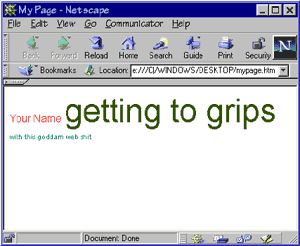 The final property COLOR (note that it is the US spelling of colour ie without the 'u' don't get this wrong or it will ignore the property) gives the text its red. Now there is a HTML colour table but I suggest you play a trail and error game. All you need to remember is that web colour is based on Red (R), Green(G) and Blue (B) so the form of a COLOR property is as follows COLOR="#RRGGBB" the # sign you need to begin then the first two numbers in this case RR represent the percentage of Red in the colour, the second two GG represent the percentage of Green in the colour and the final two represent the percentage of Blue. OK so you've got the idea, so why have you put COLOR="#FF0000" for red text because FF represents FULL ie 100%. Here's a couple for you to play with:
COLOR="#FFFF00"
COLOR="#345600"
COLOR="#3476FF"
COLOR="#000000"
COLOR="#500407"
COLOR="#008378"
Here's the code:
<HTML>
<HEAD>
<TITLE>My Page</TITLE>
</HEAD>
<BODY>
<FONT FACE="Arial" SIZE="3" COLOR="#FF0000">Your Name</FONT>
<FONT FACE="Arial" SIZE="7" COLOR="#345600">getting to grips</FONT>
<FONT FACE="Arial" SIZE="1" COLOR="#008378">with this goddam web shit</FONT>
</BODY>
</HTML>
Formatting Text
Now you'll notice that the text just continues across the page even though you've returned (pressed enter) between lines of code. This is because in HTML white space is ignored so your code doesn't have to be set in a specific way. If you want to put the text on the next line you have to use the break tag <BR> now please note the <BR> tag doesn't require a closing tag. Also this tags is the equivalent of one return to the next line.
<HTML>
<HEAD>
<TITLE>My Page</TITLE>
</HEAD>
<BODY>
<FONT FACE="Arial" SIZE="3" COLOR="#FF0000">Your Name</FONT>
<BR>
<FONT FACE="Arial" SIZE="7" COLOR="#345600">getting to grips</FONT>
<BR>
<FONT FACE="Arial" SIZE="1" COLOR="#008378">with this goddam web shit</FONT>
</BODY>
</HTML>
Also have you noticed that the text is permanently stuck on the left when we can alter that by using paragraph tags <P> like the <FONT> tag the paragraph tag has a number of useful properties the main one we're going to using is ALIGN="" this property is used to align the text (doh!) either "LEFT", "RIGHT", "CENTER" or "JUSTIFIED". So let's make a paragraph out of this page text, notice where the closing tag </P> goes:
<HTML>
<HEAD>
<TITLE>My Page</TITLE>
</HEAD>
<BODY>
<P ALIGN="CENTER">
<FONT FACE="Arial" SIZE="3" COLOR="#FF0000">Your Name</FONT>
<BR>
<FONT FACE="Arial" SIZE="7" COLOR="#345600">getting to grips</FONT>
<BR>
<FONT FACE="Arial" SIZE="1" COLOR="#008378">with this goddam web shit</FONT></P>
</BODY>
</HTML>
We can also format the text some more using opening and closing tags around the text that needs to be modified by making it bold <B> Italic <I> underscored <U> subscript <SUB> superscript <SUP>
<HTML>
<HEAD>
<TITLE>My Page</TITLE>
</HEAD>
<BODY>
<P ALIGN="CENTER">
<FONT FACE="Arial" SIZE="4" COLOR="#FF0000"><B>Your</B> <S>Name</S></FONT>
<BR>
<FONT FACE="Arial" SIZE="7" COLOR="#345600"><SUP>ge</SUP>tting to <SUB>gr</SUB>ips</FONT>
<BR>
<FONT FACE="Arial" SIZE="2" COLOR="#008378">with this <I>goddam</I> web <U>shit</U></FONT></P>
</BODY>
</HTML>
Changing the Background
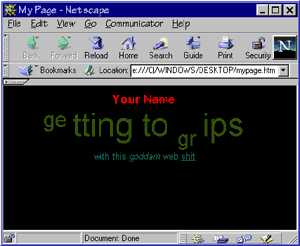 So we can now put text on a page, easy wasn't it ? Now let's change the background colour. This is a property of the <BODY> tag and is simply BGCOLOR="#RRGGBB" same colour format as before so let's make the background black.
<HTML>
<HEAD>
<TITLE>My Page</TITLE>
</HEAD>
<BODY BGCOLOR="#000000">
<P ALIGN="CENTER"><FONT FACE="Arial" SIZE="4" COLOR="#FF0000"><B>Your</B> <S>Name</S></FONT>
<BR>
<FONT FACE="Arial" SIZE="7" COLOR="#345600"><SUP>ge</SUP>tting to <SUB>gr</SUB>ips</FONT>
<BR>
<FONT FACE="Arial" SIZE="2" COLOR="#008378">with this <I>goddam</I> web <U>shit</U></FONT></P>
</BODY>
</HTML>
We can also put pictures on the background by using the BACKGROUND="yourimage.GIF" property the image must be in a GIF or JPG graphic format and the image is wallpapered across the background of the window. So your code would look like this
<HTML>
<HEAD>
<TITLE>My Page</TITLE>
</HEAD>
<BODY BACKGROUND="animage.GIF">
<P ALIGN="CENTER"><FONT FACE="Arial" SIZE="4" COLOR="#FF0000"><B>Your</B> <S>Name</S></FONT>
<BR>
<FONT FACE="Arial" SIZE="7" COLOR="#345600"><SUP>ge</SUP>tting to <SUB>gr</SUB>ips</FONT>
<BR>
<FONT FACE="Arial" SIZE="2" COLOR="#008378">with this <I>goddam</I> web <U>shit</U></FONT></P>
</BODY>
</HTML>
Bullet Lists
Another useful thing about HTML is that you can create Bulleted lists using the <LI> tag like this but don't forget to close the tag </LI> after your list:
<HTML>
<HEAD>
<TITLE>My Page</TITLE>
</HEAD>
<BODY BGCOLOR="#000000">
<P ALIGN="CENTER"><FONT FACE="Arial" SIZE="4" COLOR="#FF0000"><B>Your</B> <S>Name</S></FONT>
<BR>
<FONT FACE="Arial" SIZE="7" COLOR="#345600"><SUP>ge</SUP>tting to <SUB>gr</SUB>ips</FONT>
<BR>
<FONT FACE="Arial" SIZE="2" COLOR="#008378">with this <I>goddam</I> web <U>shit</U>
<LI>This is the first in your list</LI>
<LI>This is the second</LI>
<LI>This is the third</LI></FONT></P>
</BODY>
</HTML>
Linking web pages using text as anchors
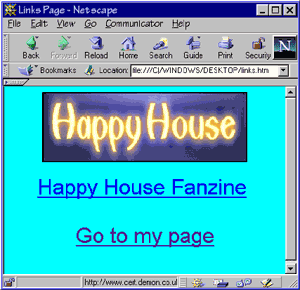 So that's some basic ways to alter and manipulate text. Now let's look at adding a link (hyperlink) to your page can link to either another website or another page on your site.
We do this using the <A> tag which is called the hyperlink anchor but we also need some properties in there like the HREF="" property which specifies the page being linked to. As before the tag is closed by </A> tag. This tag is place around text you wish to link from. The following example creates a new page which links to the Happy House site and the first page your created mypage.htm (save this page as links.htm):
<HTML>
<HEAD>
<TITLE>Links Page</TITLE>
</HEAD>
<BODY BGCOLOR="#005600">
<FONT FACE="Arial" SIZE="6" COLOR="#008378"><P ALIGN="CENTER">
<A HREF="http://www.happy-house.org.uk">Happy House Fanzine</A><BR><BR><A HREF="mypage.htm">Go to my page</A></P>
</BODY>
</HTML>
If you've followed this you should find that the links page takes you to mypage.htm when you click on the "Go to my page" link.
Putting images on to your pages
Now let's look at placing graphics on your page these must be in either GIF or JPG format and the tag we use to place them is <IMG> this tag displays an image but like with the anchor tag <A> we need some properties to make it work. The first is SRC="yourgraphic.GIF" this represents the source of the image to be placed, the next is ALIGN="" which we came across with the paragraph tag but this time the alignment is relative to the text baseline. Also we can have other properties like WIDTH="" and HEIGHT="" which specifies the exact size in pixels of the image, the image will display without but takes longer to load. BORDER="" this places a border around the image to a thickness as gauged by the number in the quotes and finally the ALT="" property which is a text alternative for non graphical browsers.
The image tag can be inserted into paragraphs along with text too.
So and example is like this:
<IMG SRC="animage.GIF" ALIGN="MIDDLE" WIDTH="150" HEIGHT="300" BORDER="2" ALT="An Image">
Which we can now type into our links page:
<HTML>
<HEAD>
<TITLE>Links Page</TITLE>
</HEAD>
<BODY BGCOLOR="#005600">
<P ALIGN="CENTER"><IMG SRC="animage.GIF" ALIGN="MIDDLE" WIDTH="150" HEIGHT="300" BORDER="2" ALT="An Image"></P>
<FONT FACE="Arial" SIZE="6" COLOR="#008378"><P ALIGN="CENTER">
<A HREF="http://www.happy-house.org.uk">Happy House Fanzine</A><BR><BR><A HREF="mypagehtm">Go to my page</A></P>
</BODY>
</HTML>
Linking web pages using graphics as anchors
We can also make our images hyperlinks too using the anchor tag <A> except where before we place the tag around the text we no place it around the <IMG> tag statement as follows:
<A HREF="mypage.htm"><IMG SRC="animage.GIF" ALIGN="MIDDLE" WIDTH="150" HEIGHT="300" BORDER="2" ALT="An Image"></A>
Which we can now type into our links page:
<HTML>
<HEAD>
<TITLE>Links Page</TITLE>
</HEAD>
<BODY BGCOLOR="#005600">
<P ALIGN="CENTER"><A HREF="mypage.htm"><IMG SRC="animage.GIF" ALIGN="MIDDLE" WIDTH="150" HEIGHT="300" BORDER="2" ALT="An Image"></A><P>
<FONT FACE="Arial" SIZE="6" COLOR="#008378"><P ALIGN="CENTER">
<A HREF="http://www.happy-house.org.uk">Happy House Fanzine</A><BR><BR><A HREF="mypagehtm">Go to my page</A></P>
</BODY>
</HTML>
So to recap these are the tags we've now sussed:
<HTML>
<HEAD>
<TITLE>
<BODY>
<FONT>
<BR>
<P>
<B>
<I>
<U>
<SUP>
<S>
<SUB>
<LI>
<A>
<IMG>
I've only listed some of the more commonly used properties of these tags which should be enough to get you going.
In the next instalment we'll look at tables, frames and other tricks.
«« © 1999 Happy House »»